Payment methods and spending limits
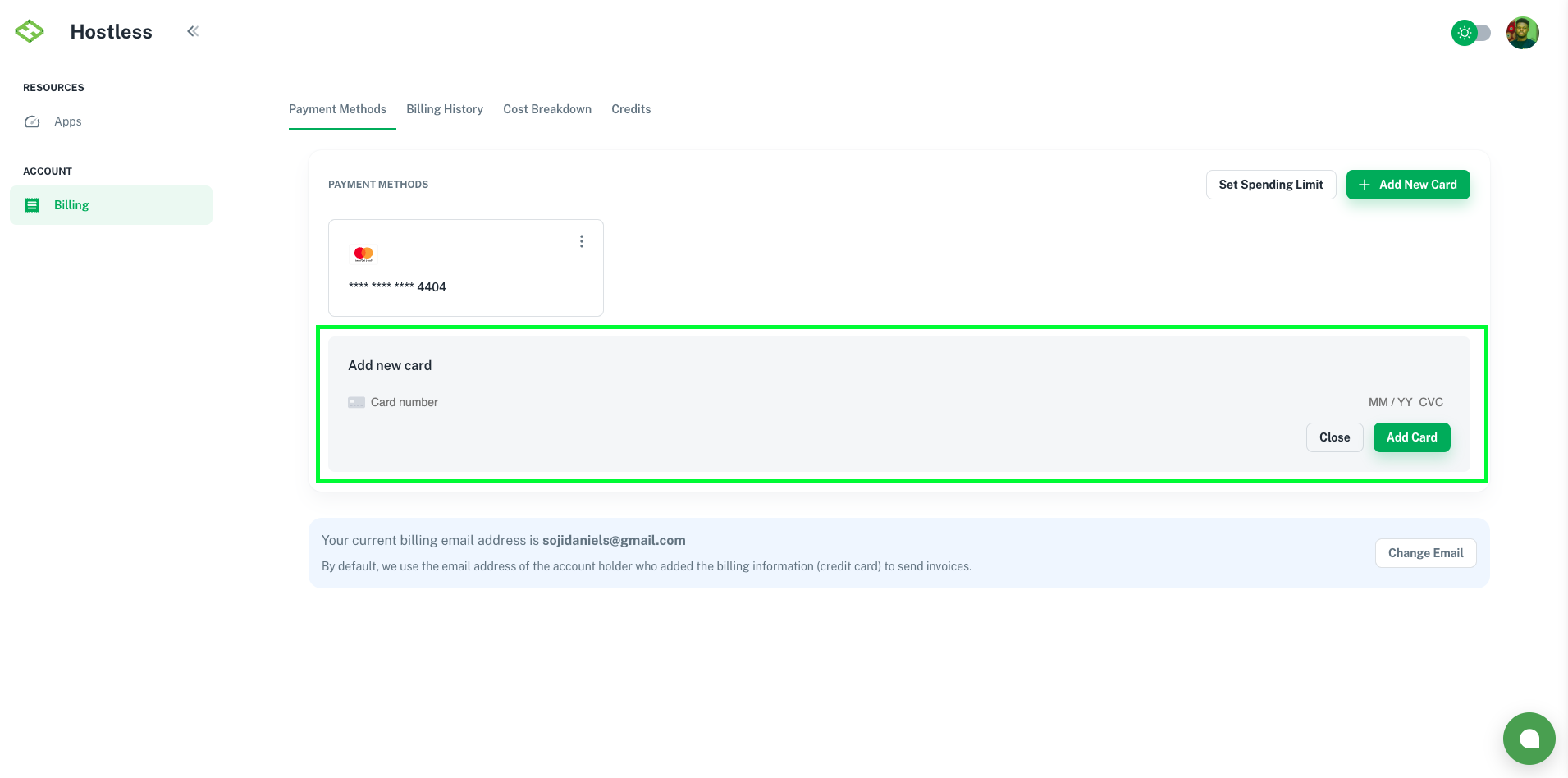
The Payment Methods page allows users to manage their billing information, add or remove cards, and set spending limit.
Add Payment Method
- Go to Billing > Payment Methods.
- Click the Add New Card button.
- Enter your payment details(card number, expiration date, and CVV.)
- Click "Add Card".
- Your card will now appear in the list.
Update Spending Limit
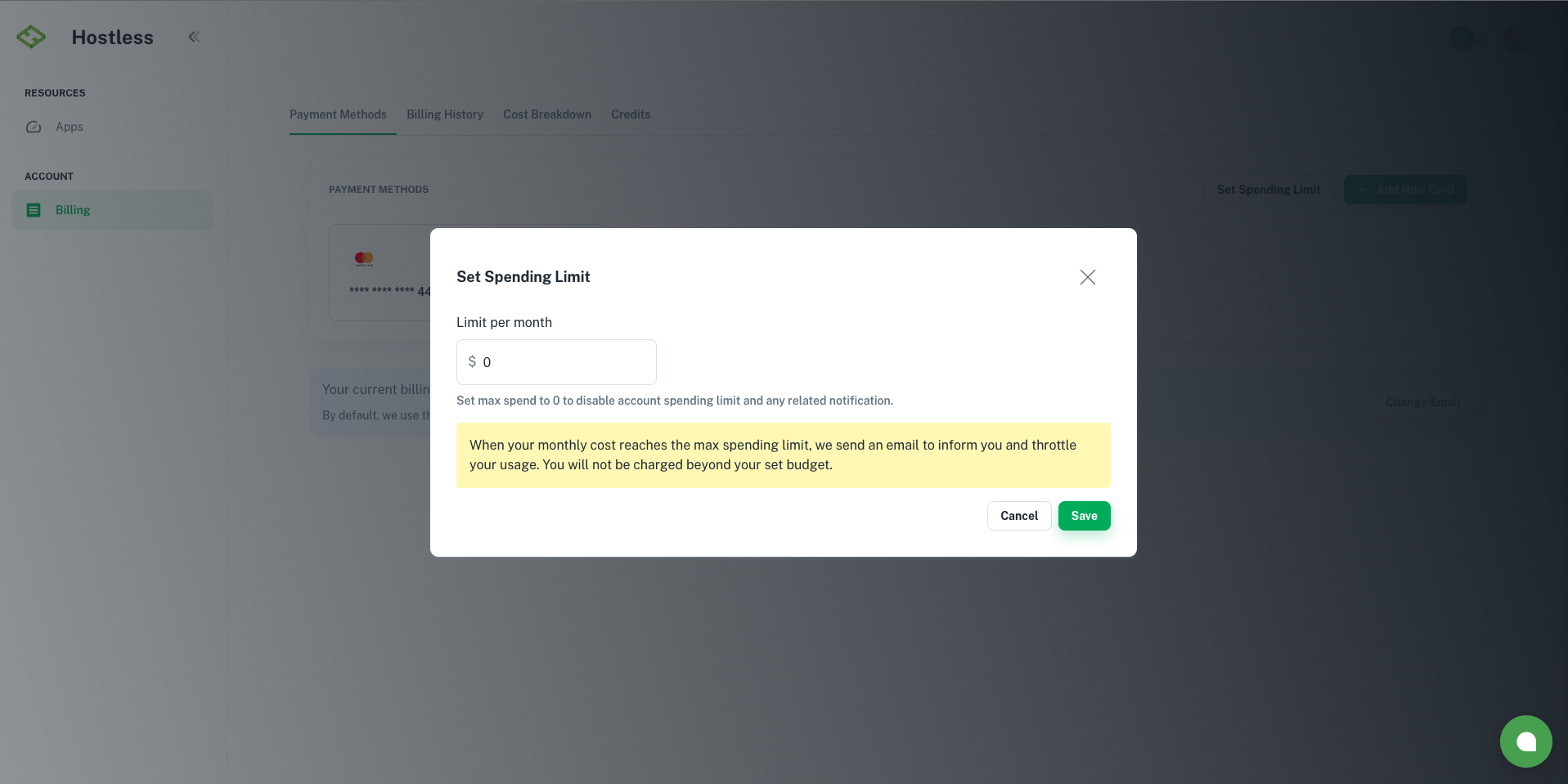
Spending limit allows you to control the maximum amount your account can spend within a billing cycle. This helps you manage costs and avoid unexpected charges.
- Navigate to Billing > Payment Methods.
- Click the Set Spending Limit button.
- Enter your desired spending limit in the provided field. Example: $100 per billing cycle.
- Click Save.
Note: Set max spend to 0 to disable account spending limit
You get reminders at 50%, 80%, and 100% of the limit. At 100%, new above-ceiling create and scale actions are blocked while everything already running stays online; scaling down is never blocked. See Limits for the ceilings the limit applies to.
Update Billing Email Address
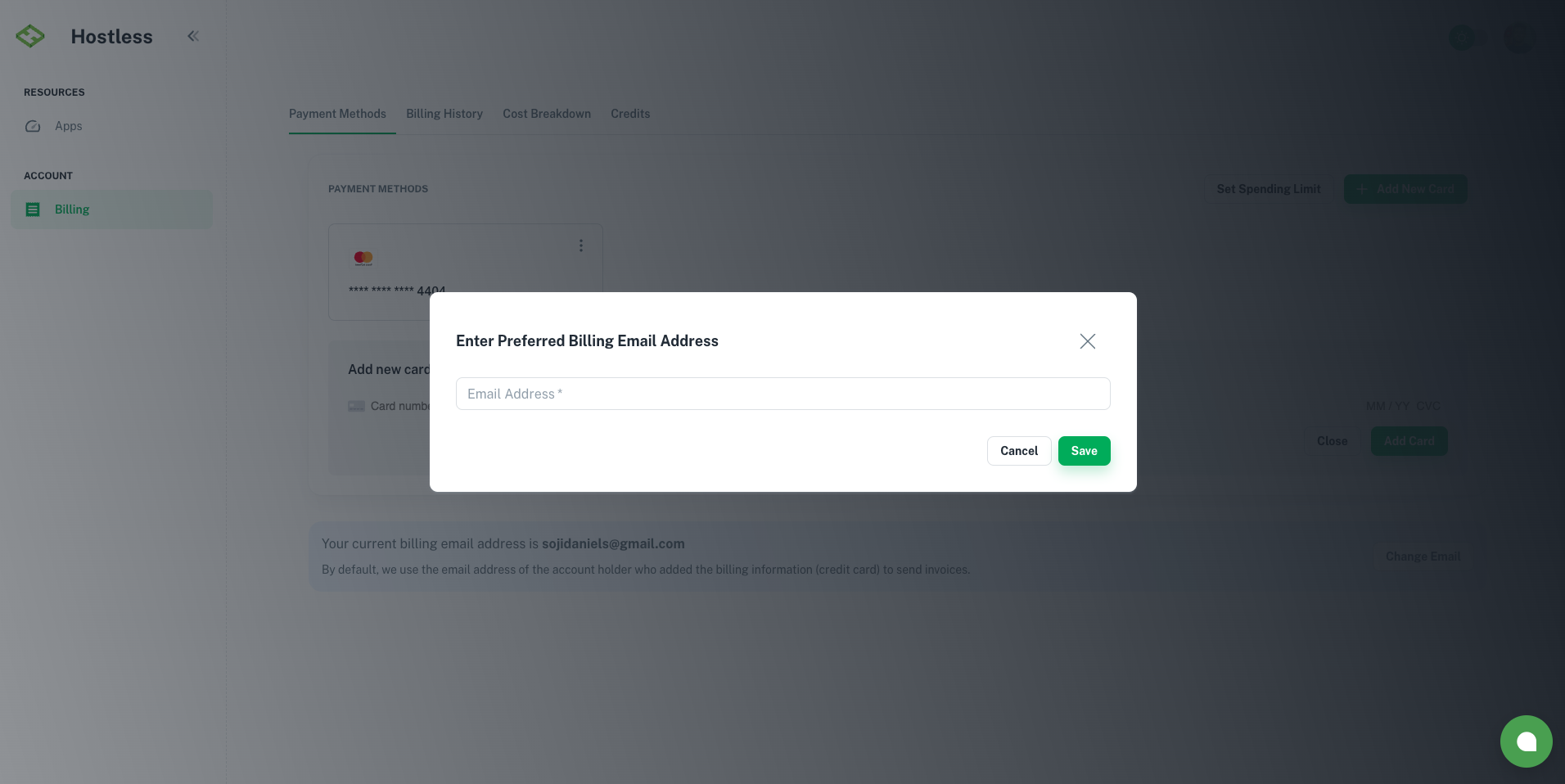
The billing email address is where you’ll receive invoices, payment receipts, and important billing notifications
- Go to Billing > Payment Methods.
- Locate the Billing Email Address section.
- Click the Change Email button.
- Enter your new email address in the provided field.
- Click Save.